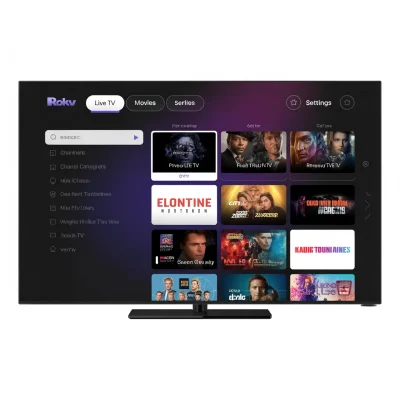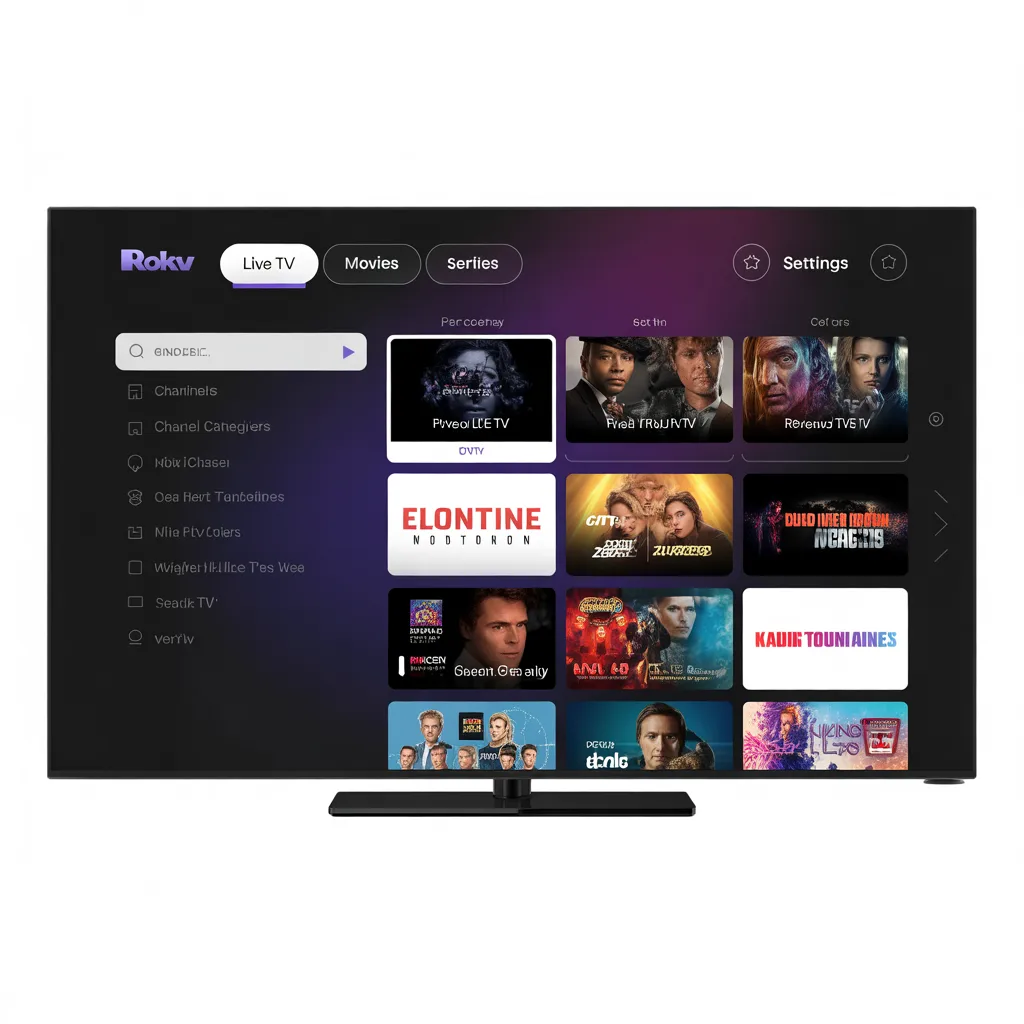

An IPTV player for Roku is an app or workaround that allows users to stream IPTV content (live TV, movies, and series via internet protocol) on Roku devices, typically using screen mirroring or compatible channels.
🎯 Introduction
If you’re searching for the best IPTV player for Roku, you’re not alone. Roku is one of the most popular streaming platforms globally, but it doesn’t natively support IPTV apps like other devices. That doesn’t mean you’re out of options.
In this complete guide, you’ll discover how to use an IPTV player for Roku, the best methods available, top apps, and step-by-step instructions to get started—even if you’re a beginner.
📺 What Is an IPTV Player for Roku?
An IPTV player for Roku is a tool or method that allows you to stream IPTV content on a Roku device. Since Roku doesn’t officially support IPTV apps in its channel store, users rely on alternative solutions such as:
- Screen mirroring
- Casting from mobile devices
- Using private channels (where available)
- Third-party apps via workaround methods
🔍 Why Roku Doesn’t Support IPTV Natively
Before diving into solutions, it’s important to understand why Roku limits IPTV apps:
- Strict content policies
- Legal compliance concerns
- Closed ecosystem (unlike Android TV)
Despite this, many users still successfully use IPTV player for Roku setups through creative methods.
🚀 Best Methods to Use IPTV Player for Roku
1. Screen Mirroring (Most Popular Method)
Screen mirroring is the easiest way to use an IPTV player for Roku.
How It Works:
You install an IPTV app on your smartphone or PC and mirror your screen to Roku.
Steps:
- Enable Screen Mirroring on Roku:
- Settings → System → Screen Mirroring → Enable
- Install an IPTV app on your device:
- Examples:
- IPTV Smarters
- TiviMate
- GSE Smart IPTV
- Examples:
- Start mirroring:
- On Android: Smart View / Cast
- On Windows: Project → Connect
- Play your IPTV content
Pros:
- Easy to set up
- Works with most IPTV apps
Cons:
- Requires another device
- Possible lag or buffering
2. Using Web Video Cast (Alternative Method)
Another popular IPTV player for Roku solution is casting via a browser-based app.
How It Works:
You stream IPTV through a web player and cast it to Roku.
Steps:
- Install Web Video Cast on your phone
- Connect it to your Roku device
- Load your IPTV playlist (M3U URL)
- Cast the stream
Benefits:
- No need for full mirroring
- Better performance than screen mirroring
3. Using Plex as an IPTV Player for Roku
Yes, you can use Plex as a workaround IPTV player for Roku.
What You Need:
- Plex Media Server
- IPTV plugin or M3U tuner setup
How It Works:
- Add IPTV playlist to Plex
- Stream through the Plex app on Roku
Pros:
- Clean interface
- More stable playback
Cons:
- Requires setup knowledge
- Not beginner-friendly
🏆 Best IPTV Apps to Use with Roku (Via Mirroring)
Even though Roku doesn’t support them directly, these apps work perfectly when mirrored:
📱 IPTV Smarters
- User-friendly interface
- Supports live TV, VOD, series
📱 TiviMate
- Advanced features
- EPG support
📱 GSE Smart IPTV
- Multi-format support
- Works on iOS and Android
⚙️ How to Choose the Best IPTV Player for Roku
When selecting your IPTV setup, consider:
✔️ Compatibility
- Works with Android, iOS, or Windows
✔️ Streaming Quality
- Supports HD / 4K
✔️ EPG Support
- Electronic Program Guide
✔️ Ease of Use
- Simple interface for beginners
🧠 Tips for Better IPTV Streaming on Roku
To improve your experience with an IPTV player for Roku:
- Use a strong Wi-Fi connection (5GHz preferred)
- Close background apps while mirroring
- Use wired connection (Ethernet) if possible
- Choose a reliable IPTV provider
⚠️ Is Using IPTV on Roku Legal?
The legality of using an IPTV player for Roku depends on your content source.
✔️ Legal:
- Licensed IPTV services
- Free public channels
❌ Risky:
- Unauthorized or pirated streams
👉 Always verify your IPTV provider.
🔗 Helpful Resources
- [Link to related article on best IPTV apps for Android]
- [Link to related article on how IPTV works]
- [Link to WHO report on mental health]
🆚 Roku vs Other IPTV Devices
| Feature | Roku | Firestick | Android TV |
|---|---|---|---|
| IPTV App Support | ❌ Limited | ✅ Full | ✅ Full |
| Ease of Use | ✅ Easy | ✅ Easy | ⚠️ Moderate |
| Flexibility | ❌ Low | ✅ High | ✅ High |
👉 If IPTV is your main goal, Android-based devices are more flexible.
🔮 Future of IPTV on Roku
Roku may eventually loosen restrictions or introduce:
- Official IPTV apps
- Improved casting features
- Better developer support
Until then, workarounds remain the best solution.
❓ FAQ: IPTV Player for Roku
Can I install IPTV directly on Roku?
No, Roku doesn’t support IPTV apps natively.
What’s the easiest IPTV player for Roku method?
Screen mirroring is the easiest and most popular option.
Do I need a subscription?
Yes, most IPTV services require a subscription.
📝 Conclusion
Using an IPTV player for Roku might not be as straightforward as on other devices, but it’s absolutely possible. With methods like screen mirroring, Web Video Cast, and Plex, you can enjoy IPTV content seamlessly on your Roku device.
Whether you’re a beginner or a more advanced user, there’s a solution that fits your needs.
📢 Call to Action
Ready to start streaming? Try one of the methods above and transform your Roku into a powerful IPTV hub today.
👉 Don’t forget to bookmark this guide, share it with others, and check out our next article:
[Link to related article on best IPTV services for 2026]
🧾 Meta Description
Discover the best IPTV player for Roku in 2026. Learn easy setup methods, top apps, and streaming tips to watch IPTV on Roku effortlessly.